
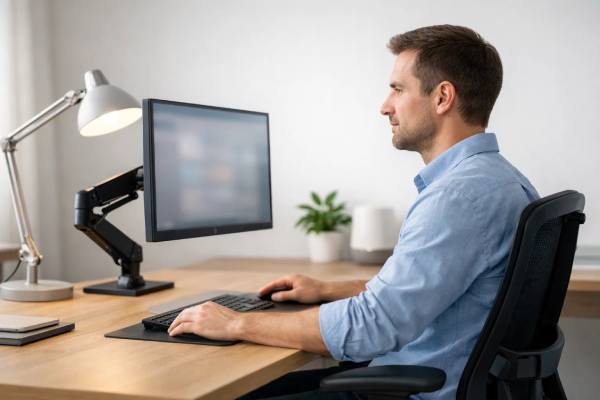
A comfortable monitor setup is one of the few “eye health” upgrades you can feel within a single workday. When your screen is the right distance and height, your eyes focus with less effort, your blink pattern stays more natural, and your neck and shoulders stop quietly adding stress that often gets misread as “eye strain.” Brightness and glare control matter just as much: a screen that is too bright for the room can make your eyes feel tired and dry, while a screen that is too dim can push you to lean forward and squint. The good news is that most fixes are simple, inexpensive, and measurable. You can change distance in minutes, re-center your monitor in a few steps, and tune brightness to match your environment—without buying special glasses or complicated gadgets. This guide walks you through a practical, evidence-informed setup for daily comfort, plus the small habits that make the setup actually work.
Core Points
- A monitor placed roughly an arm’s length away reduces focusing demand and encourages a relaxed posture.
- Setting the top of the screen at or slightly below eye level supports a natural downward gaze and less neck tension.
- Matching screen brightness to room lighting lowers squinting and “washed-out” discomfort during long sessions.
- Glare control (window placement, lamp direction, and screen angle) often improves comfort more than any single setting.
- Recheck your setup weekly for two minutes; small drift in height and distance is common as you move chairs and devices.
Table of Contents
- How far should your monitor be
- Where should the top of the screen sit
- What brightness settings protect your eyes
- How to reduce glare from lights and windows
- What text size and scaling reduce strain
- Breaks and blinking that make setup work
How far should your monitor be
Most people start with the wrong question: “How close can I sit and still see?” For eye comfort, a better question is: “How far can I sit and still read without leaning forward?” Distance affects two big drivers of strain: focusing demand (how hard your eyes must work to keep the image clear) and posture (how often you crane your neck and hold tension in your face and shoulders).
A practical starting point for most desks is about an arm’s length away—often in the neighborhood of 50–75 cm (20–30 inches). That range is not magic; it is a useful default that you adjust based on screen size, resolution, and your vision. If you use large monitors or large text, you can often sit a bit farther back. If you use small text or a laptop screen, you may need to come closer—but the goal is to avoid creeping closer over the day.
Use this simple setup check:
- Sit back in your chair with your shoulders relaxed.
- Extend your arm straight out toward the screen.
- The screen should land roughly near your fingertips or a little behind them.
- Without leaning forward, confirm you can read comfortably at your normal working text size.
If you cannot read without leaning in, do not “solve” it by moving closer first. Instead, try these in order:
- Increase your text size (in the operating system or browser).
- Increase zoom for documents and webpages.
- Improve contrast (dark text on a light background is usually easiest).
- Update your prescription if you are over 40, have astigmatism, or notice frequent refocusing.
Distance should also change slightly depending on your lens type:
- If you wear progressive lenses or bifocals, you may find the clearest zone is easier to use when the monitor is slightly closer and slightly lower than typical recommendations.
- If you wear single-vision computer glasses, you can often sit comfortably at a more standard distance without tipping your head.
Finally, consider your “lean-in triggers.” People move closer when they are fatigued, when lighting creates glare, or when dryness blurs the image. If you keep drifting forward, treat it as a signal to adjust text size, brightness, or dry-eye habits—not as a personal failure.
A well-chosen distance should feel boring. You should not notice your eyes “working” to hold focus, and you should not feel pulled toward the screen as the day goes on.
Where should the top of the screen sit
Monitor height is a quiet determinant of both eye comfort and neck comfort. When the screen is too high, you tend to open your eyes wider, expose more of the ocular surface (which can worsen dryness), and tilt your head back. When the screen is too low, you may slump forward and round your shoulders. The goal is a posture that supports a natural, slightly downward gaze—comfortable for the eyes and neutral for the neck.
A reliable target for most people is:
- Top of the monitor at or slightly below eye level when you are sitting upright.
- The center of the screen typically ends up in a slightly downward line of sight.
This is not about strict angles; it is about how your body behaves over hours. If your neck feels “held up” by the end of the day, your screen is often too high or too far. If your upper back feels compressed and you keep creeping forward, the screen may be too low, too far, or your text is too small.
Do a fast height check that does not require tools:
- Sit as you normally work, with your back supported.
- Keep your chin level—avoid lifting it to “find” the screen.
- Look straight ahead and notice where the top edge of the screen falls.
- Adjust so the top edge is at or slightly below that natural eye line.
Then fine-tune based on your eyewear:
- Progressive lenses and bifocals: Many people with multifocals tilt their head back if the monitor is too high because the computer zone is lower in the lens. A monitor that is “perfect” for a single-vision wearer may be too high for you. Lowering the screen and tilting it slightly upward can reduce that neck extension.
- Contact lenses or single-vision glasses: You can usually keep the monitor closer to standard height targets without head tilt.
Angle matters too, but it is a supporting player. A modest backward tilt often helps reduce reflections and keeps the screen perpendicular to your gaze. Avoid extreme tilt that makes text look uneven or encourages you to crane your neck.
If you use two monitors, prioritize the one you look at most:
- Place the primary monitor directly in front of you.
- Put the second monitor to the side at a similar height, angled inward.
- If you split time evenly, consider centering the gap between them so your head rotation is balanced.
A final note: if your monitor height is “correct” but your shoulders still rise toward your ears, the issue may be your chair height, arm support, or keyboard position. Eye comfort often improves when the entire workstation supports relaxed shoulders and steady breathing.
What brightness settings protect your eyes
Brightness is where many people unknowingly create strain. A screen that is much brighter than the room forces constant adaptation: your pupils and visual system keep recalibrating, and you may squint without realizing it. A screen that is too dim does something different—it makes you lean in and concentrate harder, which often reduces blinking and dries the eyes faster. The best setting is rarely “as bright as possible.” It is bright enough to read easily, but not brighter than the environment demands.
Use this practical brightness rule:
- Your screen should look like it “belongs” in the room—neither glowing like a lamp nor looking gray and underpowered.
A step-by-step calibration you can do in two minutes:
- Open a page with a white background and black text (a document or a simple webpage).
- Set brightness to the middle, then slowly decrease until the white looks slightly dull.
- Increase brightness until the white looks clean but not glaring.
- Adjust contrast only if text looks washed out; do not chase “punchy” colors for office work.
If you work across changing lighting (daylight to evening), consider making brightness changes a routine rather than a one-time set-and-forget. Daylight can be dramatically brighter than a room lit by a single lamp, and your screen should adapt with it.
Color temperature can also affect comfort:
- Warmer settings in the evening may feel gentler, especially if you are sensitive to bright, cool light.
- In daytime, a neutral setting often keeps whites from looking yellow or muddy.
However, do not expect color temperature alone to solve discomfort. Many “screen strain” complaints are driven more by glare, small text, and dryness than by color tone.
Two overlooked brightness triggers:
- Auto-brightness and dynamic contrast: These can cause subtle fluctuations that some people experience as visual fatigue. If your display is constantly changing brightness, consider turning these features off and setting a stable baseline.
- High dynamic range modes: Great for media, sometimes tiring for long documents because highlights can become intense. If your eyes feel “flooded” after screen time, try a standard mode for work and save vivid modes for movies.
If you are using a very large monitor, brightness can feel stronger simply because there is more illuminated area in your field of view. In that case, it is common to prefer a slightly lower brightness than you would on a smaller screen.
Finally, remember that brightness interacts with your eyes, not just your screen. If your eyes are dry, a bright screen may feel harsh even at reasonable settings. When brightness tweaks stop helping, shift your attention to tear stability, blinking, and glare control rather than endlessly adjusting sliders.
How to reduce glare from lights and windows
Glare is one of the most fixable causes of screen discomfort, and it is often misdiagnosed as “my eyes are getting worse.” The key concept is that glare comes from uncontrolled reflections—either on the screen surface or on your lenses—plus high contrast between bright sources and your work area. You do not need a perfect office to reduce it; you need smart placement and a few simple adjustments.
Start with the biggest lever: window position.
- If possible, place the monitor so windows are to the side, not directly behind the screen and not directly behind your head.
- A window behind the screen makes the screen look dim and washed out, tempting you to crank brightness.
- A window behind you can reflect in the screen and create a floating bright patch that your eyes keep trying to ignore.
Next, handle overhead lighting:
- If a ceiling light is reflected on the screen, try a small monitor angle adjustment and then reposition the light source if you can (or switch off the offending fixture).
- Desk lamps should usually aim at paper and the desk surface, not into your eyes and not straight into the screen.
Screen surface matters more than people expect:
- Glossy screens can look sharp and vibrant, but they are unforgiving with reflections.
- Matte screens reduce mirror-like glare and are often more comfortable in bright offices.
If you cannot change the screen type, you can still reduce reflections by adjusting the environment and angle. Be cautious with aftermarket “anti-glare” films if they degrade text clarity; a slight haze can increase effort even while reducing reflections.
Glare also interacts with eyewear:
- If you wear glasses, anti-reflective coating can reduce reflections from overhead lights, but it cannot remove glare from a poorly placed window.
- If you notice glare mostly at night or under certain lamps, that is a clue the main issue may be lens reflections rather than screen reflections.
A practical glare-audit you can run quickly:
- Turn the monitor off so it becomes a dark mirror.
- Look at what you see reflected: windows, lamps, bright objects, even a white shirt.
- Remove or reposition the biggest offenders (shift the monitor, rotate the desk, change lamp angle).
- Turn the monitor back on and lower brightness if you had previously raised it to fight glare.
Finally, do not ignore the “paper problem.” If you switch between a bright printed page and a darker screen, your eyes constantly adapt. A document holder near the monitor and balanced lighting on the desk can reduce that back-and-forth strain.
When glare control is done well, most people describe the change as immediate: less squinting, less forehead tension, and fewer moments where the screen feels like it is competing with the room.
What text size and scaling reduce strain
People often treat text size as a preference. For eye health, it is a posture and fatigue tool. If your text is small, you will lean forward, narrow your eyelids, and stare harder. That reduces blinking and increases dryness. If your text is comfortably large, you can sit back, blink normally, and maintain focus without constant micro-effort.
A good target is: you should be able to read without leaning forward or tightening your face. That may mean increasing text size more than you think—especially on high-resolution displays where the default can be visually tiny.
Use these practical steps:
- Increase your operating system’s scaling rather than only increasing browser zoom. Scaling keeps menus, icons, and toolbars readable too.
- Set your default browser zoom to a comfortable level (many people find 110–125 percent more sustainable for long sessions).
- Choose a readable font size in your key apps and keep it consistent.
Text clarity is shaped by more than size:
- Contrast: Dark text on a light background is often the easiest for extended reading. If you prefer dark mode, make sure the text is bright enough and the background is not a harsh pure black that increases perceived glare.
- Line spacing and layout: Tight line spacing can increase “crowding” and fatigue. Increasing spacing slightly can feel calmer.
- Font choice: Simple fonts with clear letter shapes reduce misreads and refocusing.
Resolution and screen size also influence comfort. A very high-resolution monitor can look beautiful, but if you do not adjust scaling, it can encourage tiny UI elements. Conversely, a lower-resolution monitor can make text look jagged, which some people experience as tiring. The most comfortable setup is the one where letters look clean at a size you can read at a relaxed distance.
If you wear progressives, text size is even more important because you are working within a smaller “clear zone.” Small text can push you into awkward head positions that look like neck problems but start as a visual demand problem. For multifocal wearers, increasing text size is often the fastest way to improve both eye comfort and posture without moving the monitor dramatically.
Consider your typical task:
- If you write, code, or read long documents, you want larger text and stable layout.
- If you do design or spreadsheet work, you may want more on-screen real estate, but you should still keep the main working area readable without leaning.
A simple weekly check: sit back, relax your shoulders, and read a paragraph without moving your head forward. If you catch yourself inching closer, treat it as a signal to increase text size or improve contrast—before strain accumulates.
Breaks and blinking that make setup work
A perfect monitor setup can still fail if your eyes are asked to do one thing continuously for hours: maintain near focus while blinking less. Digital eye strain is not only about screens; it is also about how humans behave at screens. We stare, we blink less, and we hold our bodies still. Breaks and blinking are the maintenance system that keeps your setup working.
The most widely used micro-break approach is the 20-20-20 pattern: every 20 minutes, look at something about 20 feet away for 20 seconds. The number is less important than the outcome: you interrupt constant near focus and you remind your eyes to reset.
Make breaks easier by designing them into your work:
- Keep a “distance target” visible (a window view, a distant wall object).
- Pair breaks with a natural workflow moment (saving a file, sending an email).
- Use a timer if you tend to lose track of time.
Blinking deserves special attention because it is often the missing link. Many people feel “eye strain” but the dominant issue is actually dryness. A simple practice during intense work:
- Every time you switch tasks, do five slow, complete blinks.
- If you feel burning or grittiness, pause and blink fully rather than rubbing your eyes.
Hydration and airflow matter too:
- Direct air from a fan or vent can dry the ocular surface quickly.
- If you can, redirect airflow away from your face or use a humidifier in very dry environments.
If your eyes still feel dry despite good habits, consider whether you may have baseline dry eye. In that case, monitor adjustments help, but you may also need targeted care (for example, lubricating drops or eyelid hygiene) discussed with an eye care professional.
Breaks should also include the body, because musculoskeletal tension and visual fatigue reinforce each other:
- Stand up briefly every hour if possible.
- Roll shoulders back, unclench your jaw, and let your gaze soften at distance.
Finally, pay attention to warning signs that deserve an eye exam rather than more tweaking:
- Persistent blur that does not clear with blinking.
- Frequent headaches, especially if new.
- Double vision, noticeable eye turning, or difficulty focusing at near that is worsening.
- Sudden increase in light sensitivity.
Monitor setup is a strong foundation, but the daily win comes from pairing that foundation with small, repeatable behaviors. If you do the setup and the habits together, many people find that “eye strain” becomes occasional rather than constant—and long work sessions feel far less punishing.
References
- Digital Eye Strain: Updated Perspectives 2024 (Review)
- Digital Eye Strain- A Comprehensive Review 2022 (Review)
- Computer vision syndrome: a comprehensive literature review 2025 (Review)
- eTools : Computer Workstations – Workstation Components – Monitors | Occupational Safety and Health Administration 2026 (Guidance)
Disclaimer
This article is for educational purposes only and does not provide medical advice, diagnosis, or treatment. Visual discomfort during screen use can have multiple causes, including uncorrected refractive error, dry eye disease, binocular vision problems, migraine, and eye disease. If you have new or worsening symptoms such as persistent blurred vision, frequent headaches, eye pain, double vision, sudden light sensitivity, or sudden vision changes, seek prompt evaluation from an optometrist or ophthalmologist. Always follow manufacturer guidance for display settings and workstation equipment, and consult a qualified professional if you need individualized ergonomic or medical recommendations.
If you found this article helpful, please consider sharing it on Facebook, X (formerly Twitter), or any platform you prefer. Your support helps our team continue producing reliable, high-quality health content.